
Add login menu with popup login form
- Login to your WordPress Admin
- From WordPress Admin, click on Appearance -> Menus
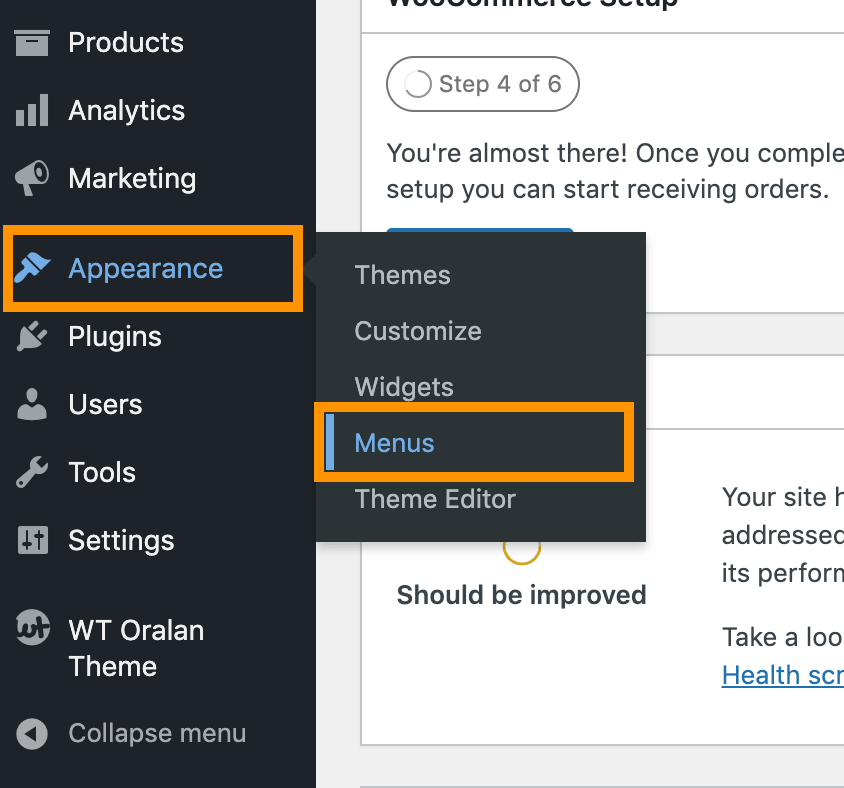
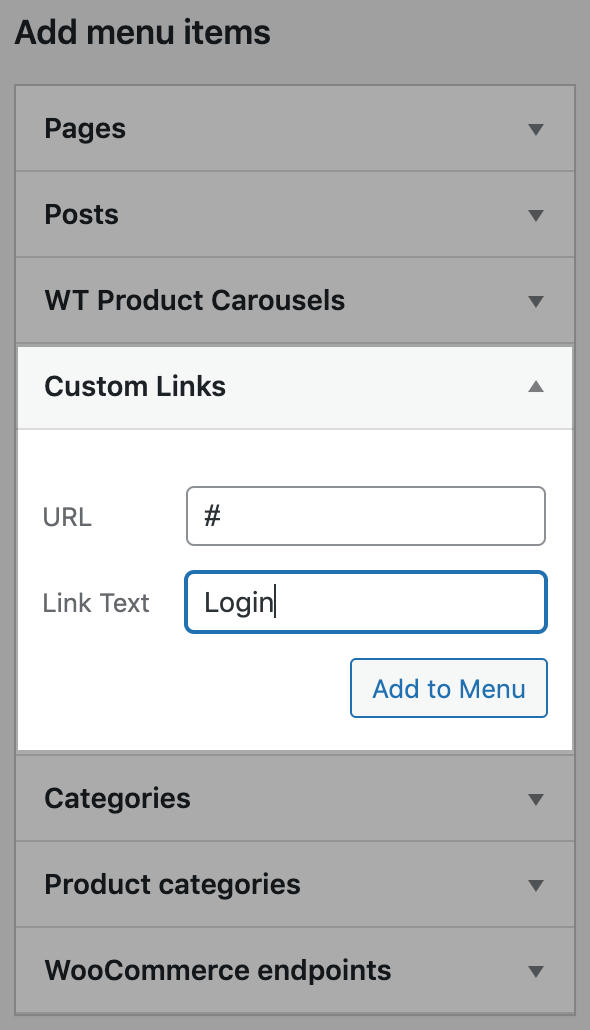
- Create a Login menu with Custom Links options
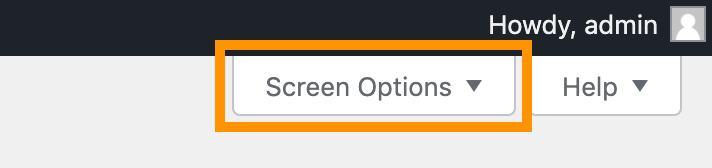
- From the same window, click on Screen Options from top right corner
- Check on CSS Classes

- Expand the Login menu you just created and under the CSS Classes (optional) add wt-open-login

- Expand the Logout menu and under the CSS Classes (optional) add hide-for-guest
- If you need to hide some menu items to guest (not logged in) user, follow Hide some menu items for guest users
- If you need to hide some menu items to logged in users (show guest users only), add CSS Class to the menu item: show-for-guest
- Click on Save Menu
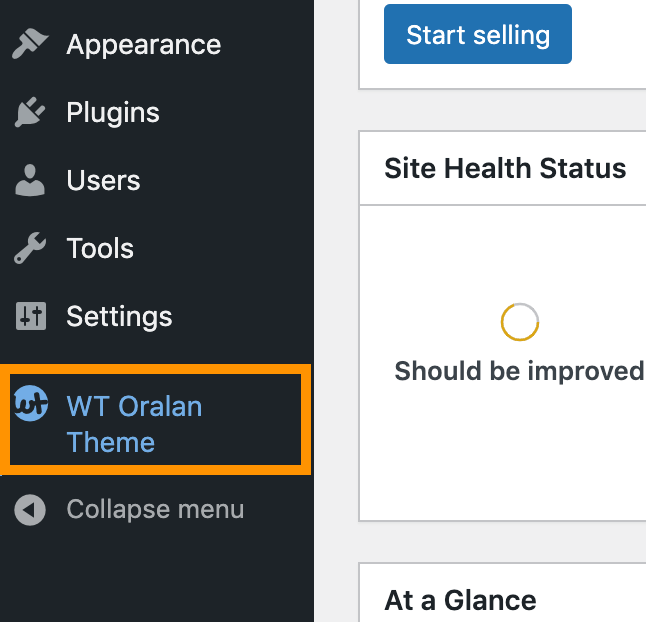
- From the WordPress Admin, click on WT THEME_NAME Theme
- Click on Layout under Base Outline

- Scroll down to Header section, click config icon next to the Header Toolbar particle (if you theme doesn't have Header section, please check Sidebar and Aside section)

- Click on Menu Options tab (on some themes, you may find it on Navigation Toolbar under Navigation section or under Sidebar or Aside section)
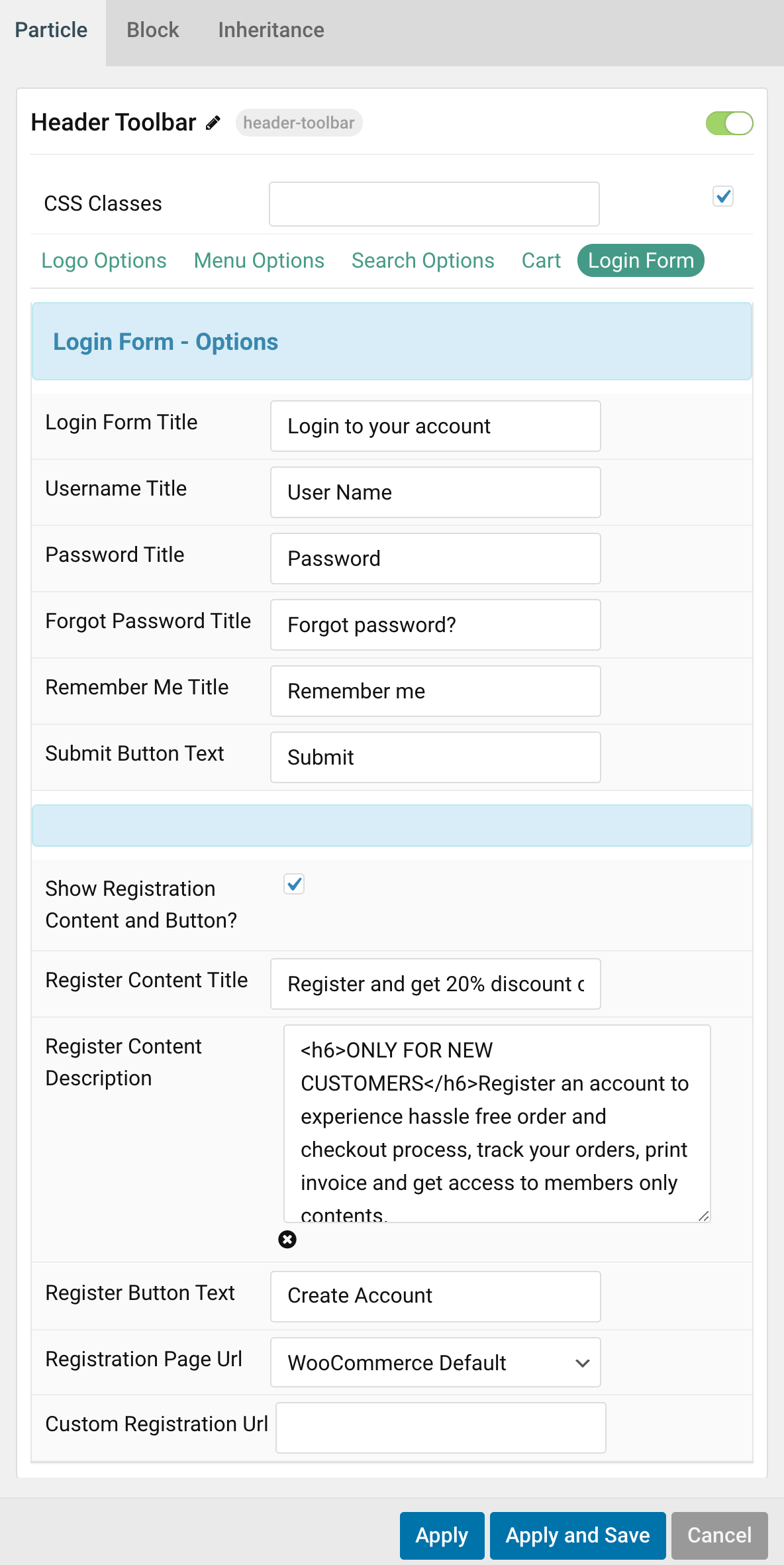
- Follow on-screen instructions and edit as you need.
- Click on Apply and Save button.